Independent case studyProduct · UI/UX · 2026

Google Calendar:
AI-assisted planning.

Turning email commitments into calendar suggestions people can inspect, adjust and confirm.

The challenge
Fit email commitments around a changing workday.
My contribution
Product framing, desktop + mobile UI, and interactive prototyping.
Status
Concept · Usability tested · Simulated data
Result
Participants understood the scheduling action; four returned to the source email to verify the AI's interpretation.
Role
Product Designer
Timeline
8 weeks
Platform
Desktop + mobile
From mail · Priya Raman · 08:52Suggestion

Send the revised quote

Tuesday 14:00 – 16:00Your only clear two-hour block before the deadline
Task
Send the revised quoteStated in the email
Deadline
Friday 18:00Inferred deadline“by end of week” names no time. Worth checking with the sender.
Length
2 hoursEstimated durationYour last four quotes averaged 1h50.

Nothing is final until you confirm it.

The prototype’s suggestion card, on sample data. See what the assistant read, add the block, undo it.

01 / The starting point

An email gives a deadline, not a plan.

Target user hypothesis

People coordinating client work through email and a busy calendar.

I explored a review step between an email request and a calendar booking, where people can check the source, estimate effort and choose a time.

Illustrative task

“Could you send the revised quote by end of week?”

How much time does it need, and where will it fit?

Product references: Gemini in Gmail and events from Gmail.

02 / Three design choices

Keep context, evidence and control together.

01 / Context

Compare the change before moving the task.

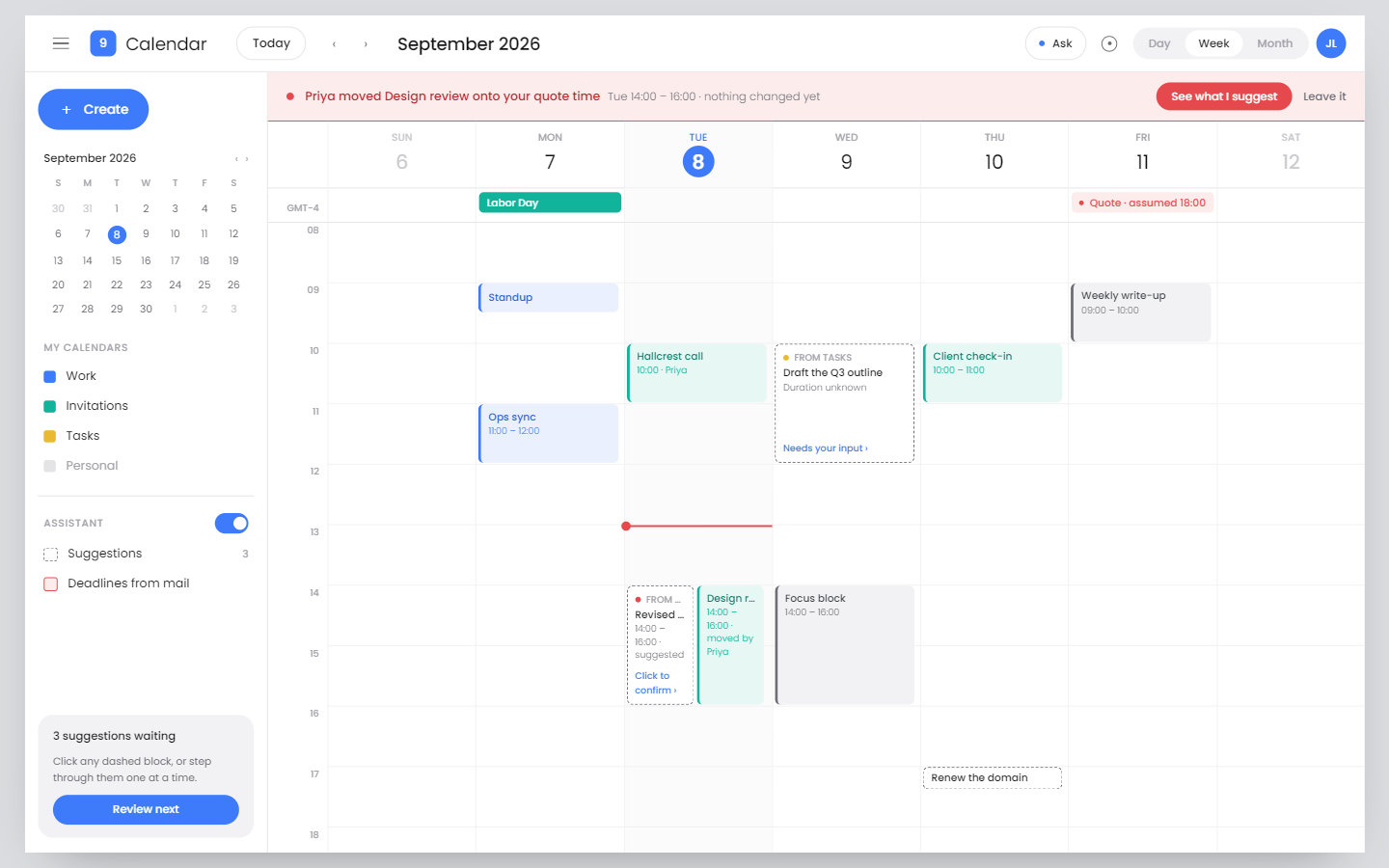
I kept the conflict and proposed time in the week view so people can judge the change against the rest of their day.

The trade-off
More calendar context adds visual density. The notice focuses on the affected task.

02 / Evidence

Keep the email beside the suggestion.

I put the source email beside time and duration so people can check the recommendation without leaving the calendar.

The trade-off
Opening the full email adds a step, so the key request is shown first.

03 / Control

Let people choose the final time.

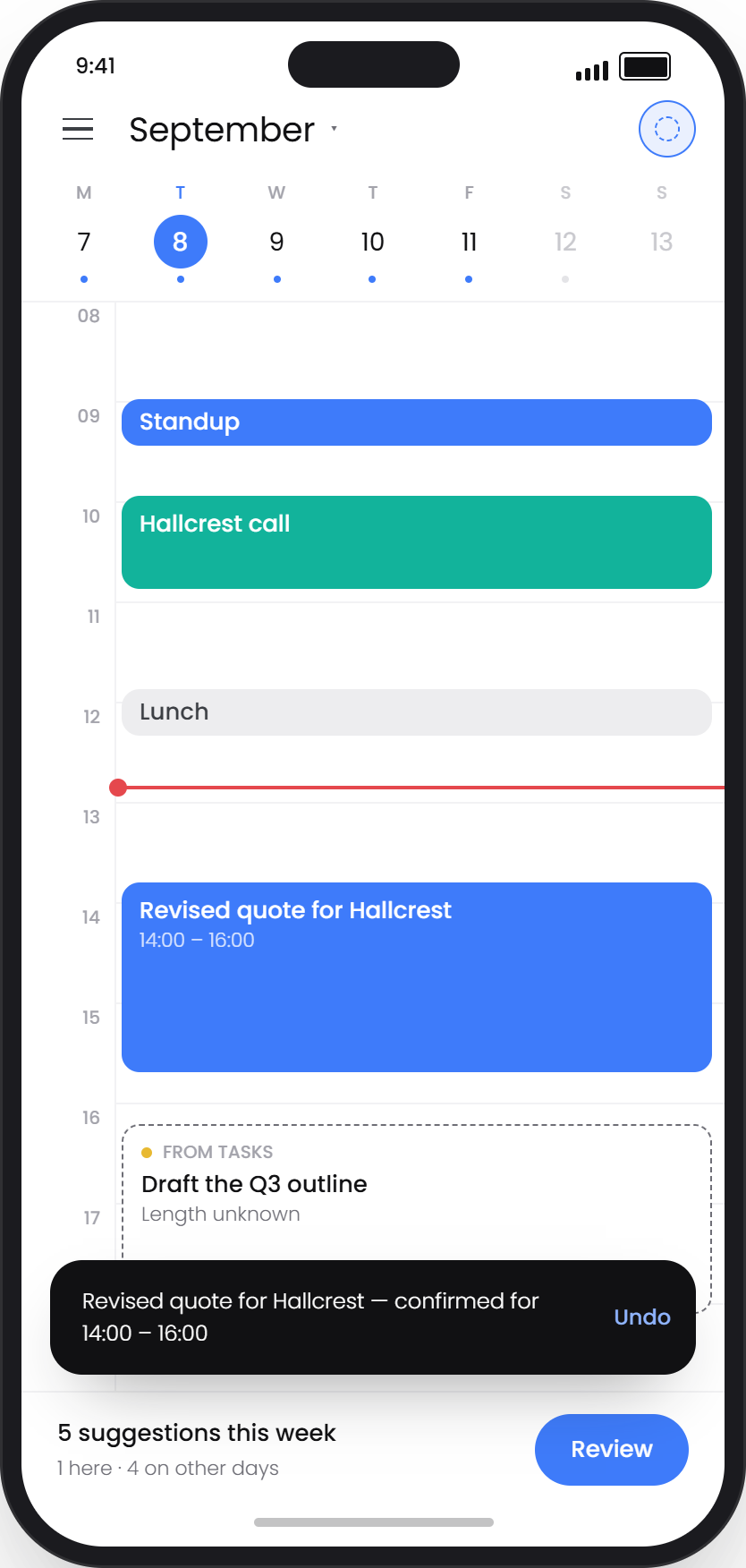
I kept scheduling under individual review. Choosing an alternative slot adds the event, updates the pending count and exposes Undo.

The trade-off
Choosing a slot currently confirms it immediately. A separate preview and confirmation is the next variant to test.

03 / AI & trust

Make the assumption visible.

I changed the deadline label after finding that an inferred time looked like a fact from the email.

Email request

“By end of week”

No exact time specified.
Earlier label

Friday, 18:00

Presented as extracted from the email.
Revised desktop label

Friday, 18:00 Inferred

An assumption to check with the sender.

Recordings and mobile screens show the earlier wording; the desktop prototype includes the revised labels.

04 / Mobile high fidelity

Focus on one scheduling decision at a time.

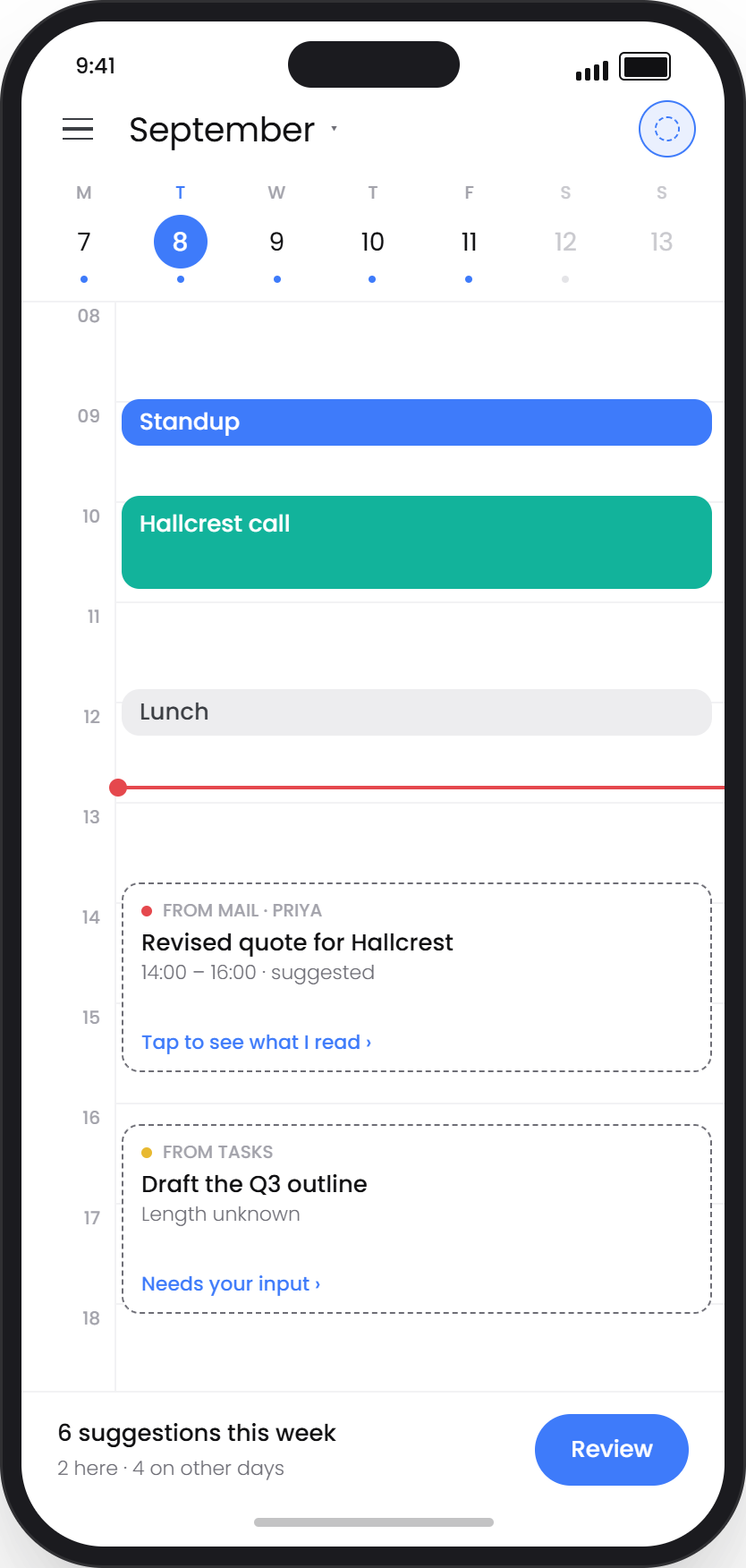
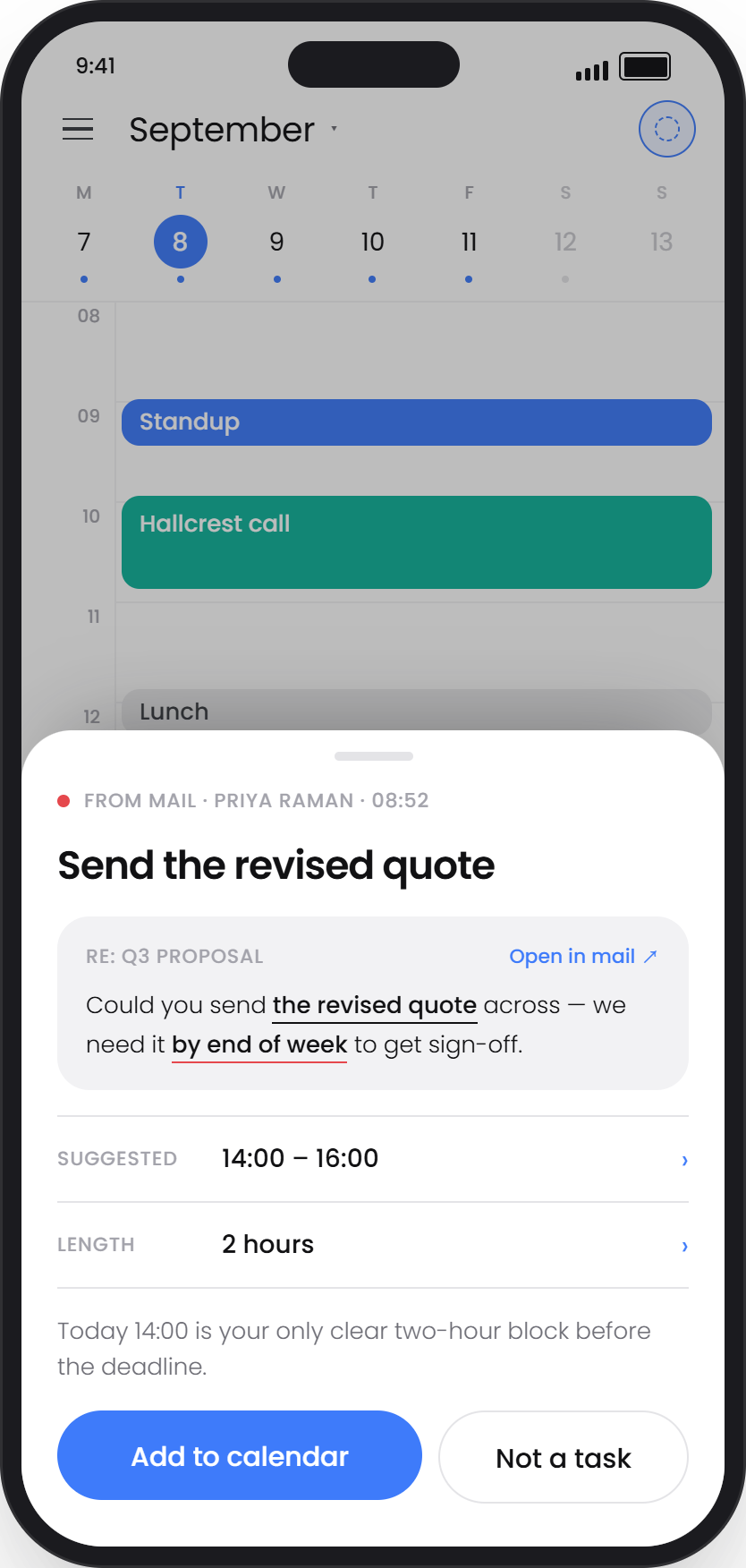
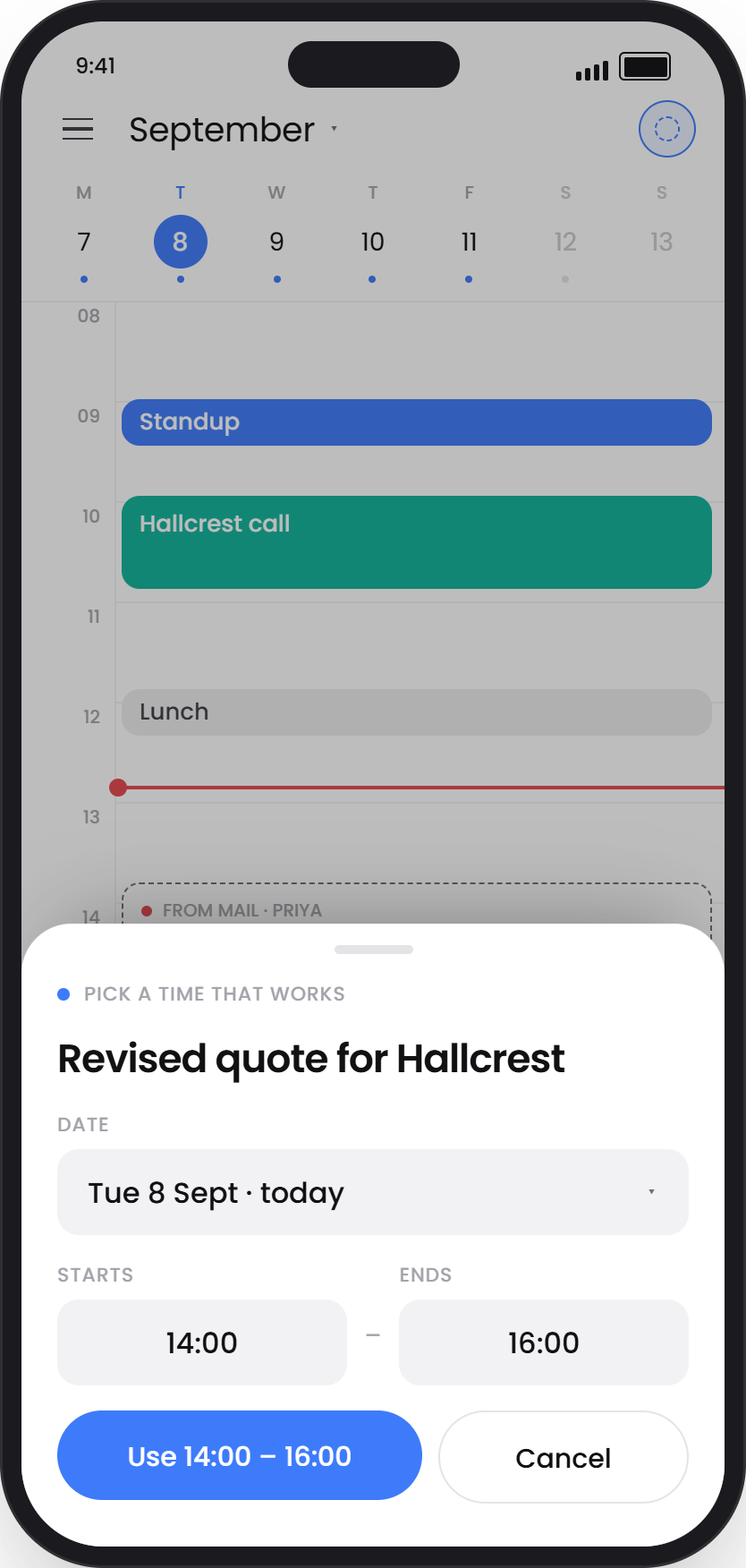
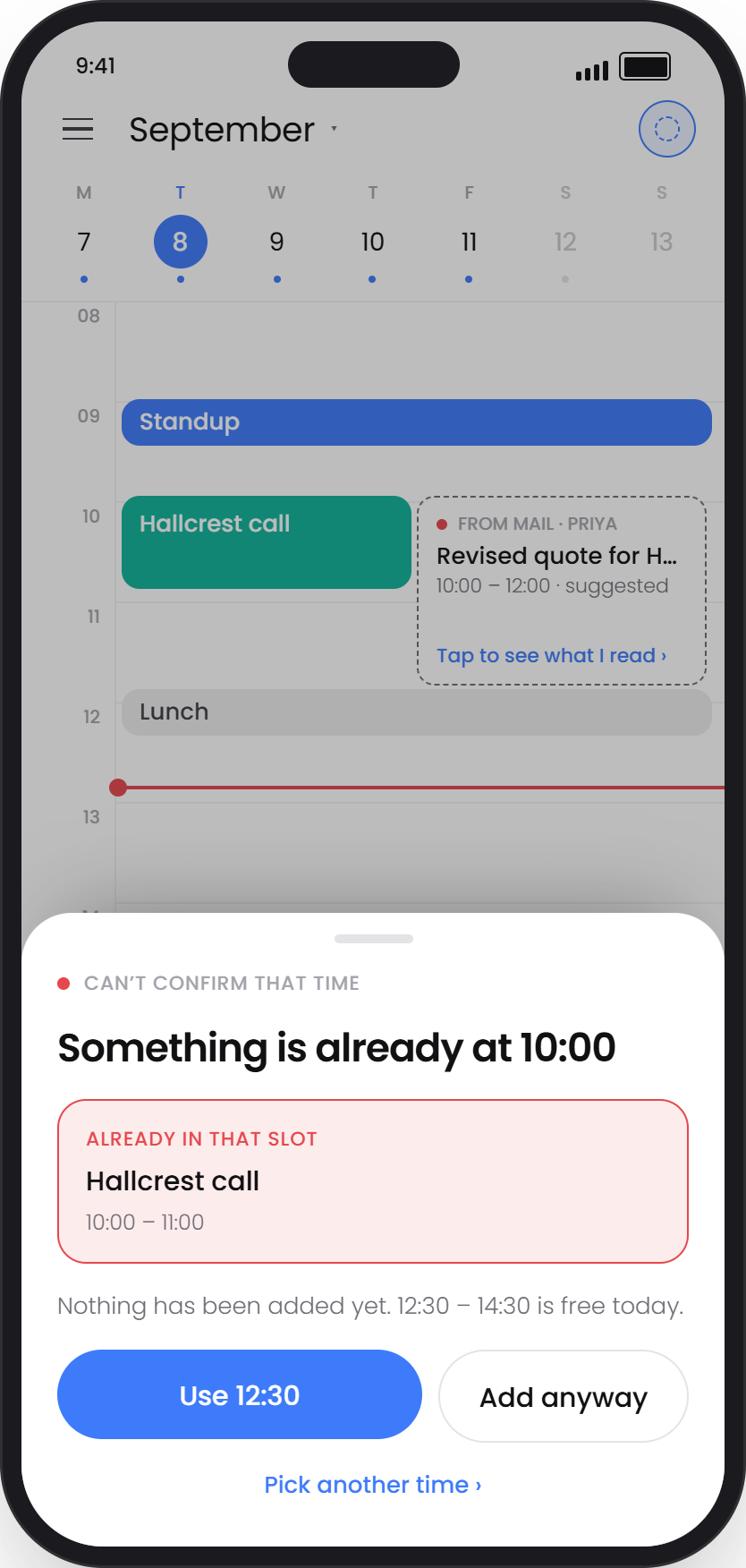
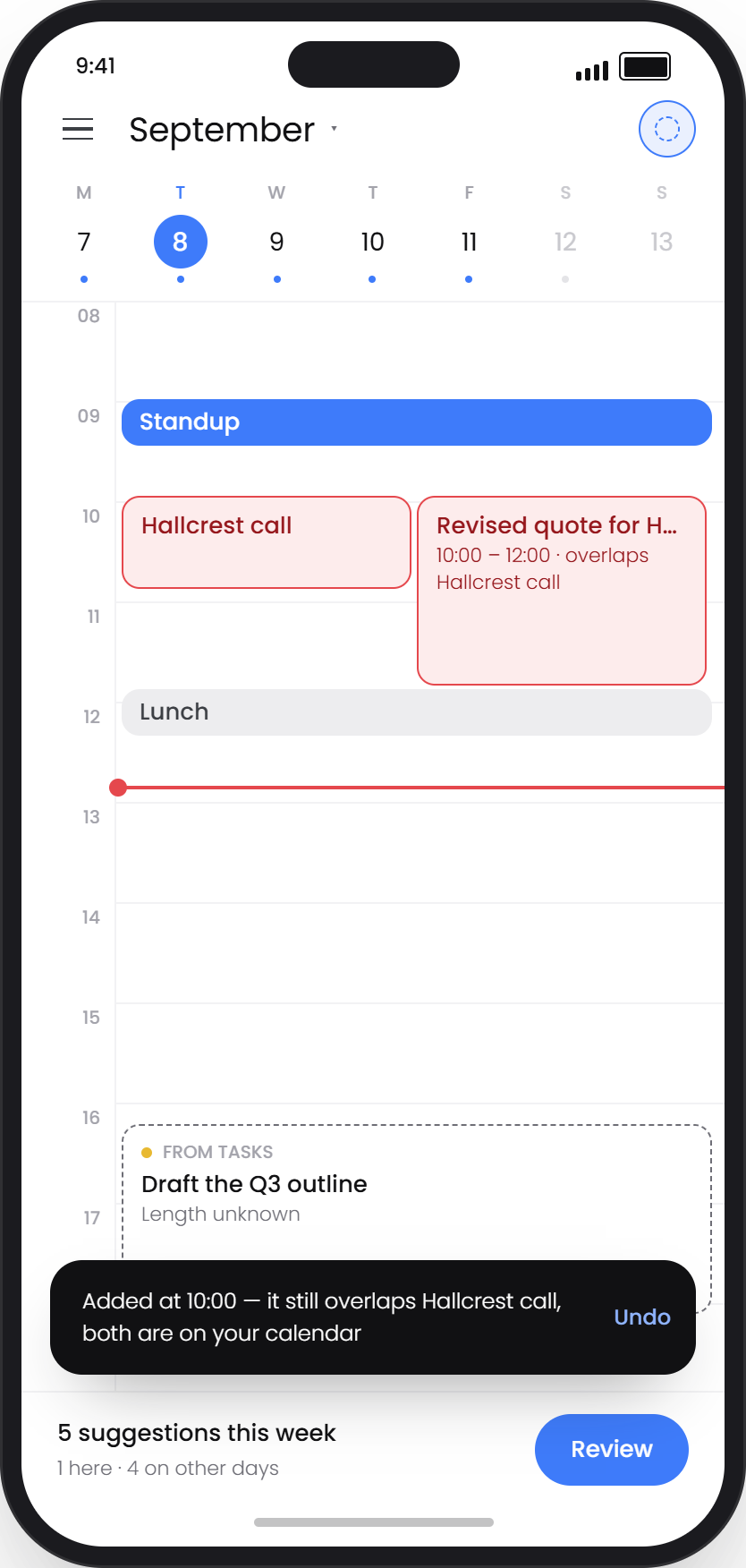
I adapted the desktop week view into a day view and bottom sheet, keeping the current task and surrounding events together.

Six mobile screens
Distinguish suggestions from bookings.Open full size
01Distinguish suggestions from bookings.
Check the source email.Open full size
02Check the source email.
Adjust time and duration.Open full size
03Adjust time and duration.
Confirm, with Undo available.Open full size
04Confirm, with Undo available.
Review a scheduling conflict.Open full size
05Review a scheduling conflict.
Keep unresolved conflicts visible.Open full size
06Keep unresolved conflicts visible.

05 / Interactive prototype

Try a planning decision.

Start with Review next. Check the email, choose a time, then try Undo.

Open desktop prototype
Desktop Calendar prototype with scheduling suggestions in the week view
Desktop preview · Open on a larger screen to interact with the prototype.
Explore three more desktop interactions

Interaction / 01

Ask for the missing duration.

Choose a duration, preview the block and confirm it in the calendar.

Interaction / 02

Review a preference before saving it.

Confirm a morning scheduling preference before it becomes a rule. History and percentages use sample data.

Interaction / 03

Keep direct calendar editing available.

Drag an existing meeting; its time updates and Undo appears.

06 / Evaluation & iteration

Clear actions, with a need to verify the AI's interpretation.

Understanding the scheduling action did not automatically create confidence in the AI's interpretation.

Participants

I invited students and working professionals who frequently used calendar and task-planning apps. Participants had an established habit of recording events and planning daily tasks, with experience across Google Calendar and other planning tools.

Observed in usability testing

Actions and states were clear

Participants understood how to add a suggestion to the calendar and could distinguish pending suggestions from confirmed events.

Observed behavior

Source verification remained necessary

Four participants returned to the source email to read it carefully and check whether the AI had understood the request correctly.

Next iteration

Make the evidence easier to inspect

The next iteration will make the existing source evidence easier to inspect, give inferred deadlines and estimated durations clearer labels, and keep editing and email access close to the suggestion. These refinements still need to be tested.

I interpreted the return to the source email as a need for more visible evidence before relying on the recommendation. The goal is to help people verify the recommendation when needed, not to eliminate source checking.

The prototype uses simulated data and is not connected to live email or calendars. This usability test did not validate backend AI accuracy or real-world time savings.

Independent concept based on public Google Workspace documentation. Not affiliated with Google.